Clever Portal has become a daily tool for millions of students, parents, and teachers. With a single login, it unlocks access to all the apps and resources schools use for learning. But like any technology, Clever sometimes runs into problems.
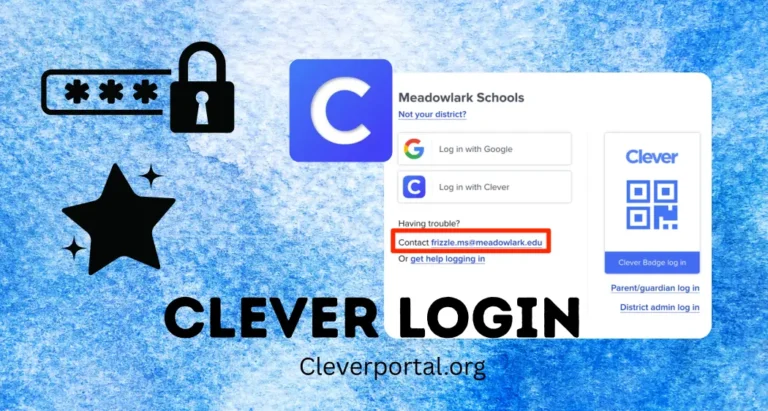
If you’ve ever been stuck on the login page, received an “invalid password” error, or struggled with Clever Badges not scanning, you know how frustrating it can be. The good news? Most Clever login issues are simple to fix once you know what’s causing them.
In this guide, we’ll walk you through the most common Clever login errors in 2025 and provide easy step-by-step fixes so you can get back to learning quickly.
Why Clever Login May Not Work
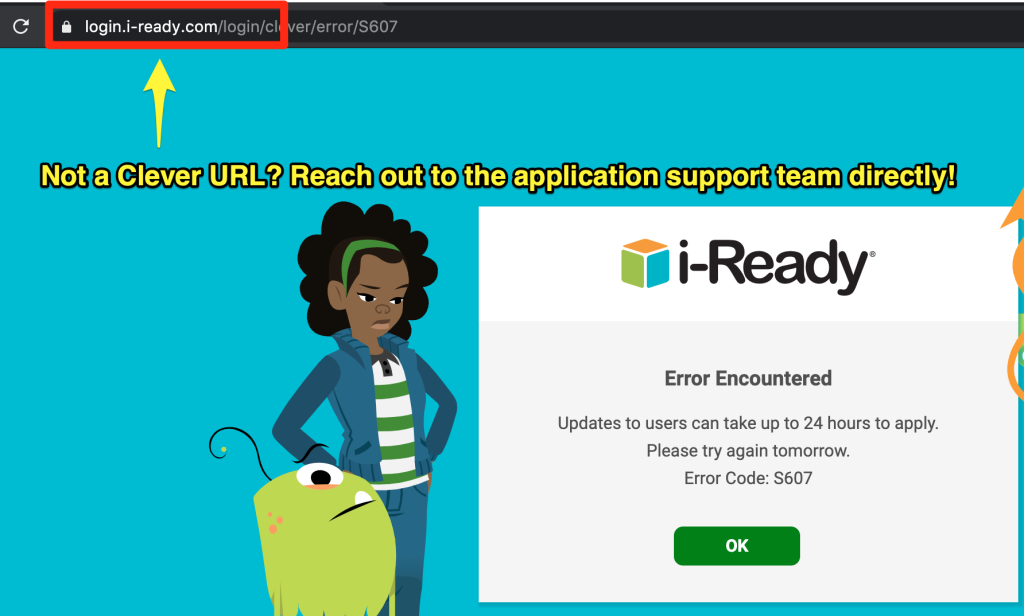
There are several reasons why Clever login might fail. Some are small technical glitches, while others come from account settings managed by your school. Here are the most common causes:
- Wrong username or password: A simple typing mistake or outdated credentials.
- Expired credentials: Schools often reset accounts at the start of a new term.
- Browser cache or cookies: Old data can block login attempts.
- Unstable internet: Weak Wi-Fi signals can stop the login process.
- System maintenance: Clever occasionally has downtime for updates.
- SSO integration issues: Errors with Google or Microsoft login.
Understanding the cause is the first step to solving the problem.
Most Common Clever Login Problems in 2025
Let’s break down the issues students, parents, and teachers face most often:
- “Invalid username or password” – Happens if credentials are typed incorrectly or have been updated by the district.
- “Too many login attempts – account locked” – Repeatedly entering the wrong details can temporarily lock accounts.
- Clever Badge not scanning – The camera may not read the QR code due to poor lighting or a smudged lens.
- Portal not loading / blank screen – Usually caused by browser cache or poor internet.
- App not opening after login – The Clever Portal loads, but specific apps don’t.
- Error with Google/Microsoft login – Single sign-on services sometimes disconnect.
Each of these problems can be fixed with a few simple steps.
Fixes for Clever Login Issues
Here’s a detailed troubleshooting guide to get Clever working again:
Check Credentials
- Make sure you’re entering the correct username and password.
- Watch for common mistakes like caps lock or extra spaces.
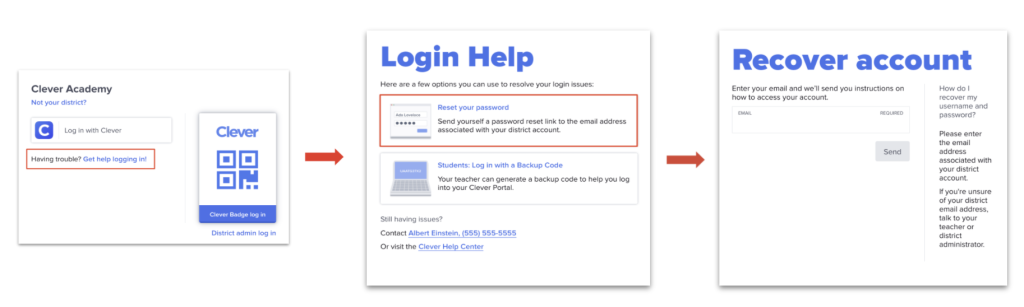
- If you’ve forgotten your password, use the reset option or ask your school to reset it.
Clear Browser Cache and Cookies
- In Chrome: Go to Settings > Privacy and Security > Clear browsing data.
- Select cache and cookies, then restart your browser.
- This often fixes blank pages and loading issues.
Test Internet Connection
- Switch to a stronger Wi-Fi signal.
- Restart your router if the connection is unstable.
- Try using mobile data as a backup.
Try a Different Browser or Device
- If Chrome isn’t working, try Edge, Firefox, or Safari.
- Test login on a different device to see if the problem is device-specific.
Update or Reinstall the Clever App
- On mobile devices, update the app from the App Store or Google Play.
- If problems continue, uninstall and reinstall the app.
Fix Clever Badge Problems
- Ensure your camera lens is clean and has permission to access Clever.
- Hold the badge steady in front of the camera with good lighting.
- If the badge is damaged, request a replacement from your teacher.
Contact School IT or Clever Support
- If nothing works, the issue may be on the school or Clever side.
- Contact your district’s IT team or visit the Clever Help Center.
Most issues are solved within a few minutes when these steps are followed carefully.
Device-Specific Troubleshooting
Different devices sometimes require specific fixes.
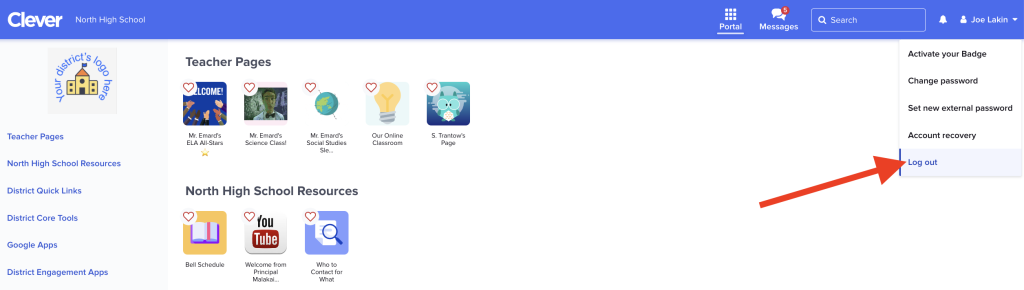
- Windows/Mac computers: Clear cache, update your browser, and disable conflicting extensions.
- Chromebooks: Restart the device, check ChromeOS updates, and try re-logging.
- Mobile (iOS/Android): Update the Clever app regularly, and reinstall if login fails.
- Tablets: Ensure the camera is enabled for Clever Badge scanning and run the latest OS version.
Preventing Future Login Problems
Prevention is better than cure. Here are simple habits to avoid repeated login problems:
- Bookmark the official Clever login page to avoid fake links.
- Keep your app and browser updated to the latest version.
- Use secure Wi-Fi connections—public networks can cause login issues.
- Store your credentials safely but don’t share them with others.
- Parents should remind younger children to use Clever Badges properly.
By following these steps, you’ll reduce the chances of running into login errors again.
Quick Tips for Students, Teachers, and Parents
Different users benefit from different approaches:
- Students: Always check your Clever Badge before class. Keep it safe and clean.
- Teachers: Monitor student logins at the start of class and report recurring issues to IT.
- Parents: Use the Clever Family Portal to track activity and help children troubleshoot at home.
These quick tips make Clever smoother for everyone.
FAQs
Q1: How do I reset my Clever password?
If your district allows, click the “Forgot Password” option. Otherwise, contact your school IT department.
Q2: Why does my Clever Badge not scan?
Check your camera, clean the lens, and make sure you’re in a well-lit room. If it still doesn’t work, ask for a new badge.
Q3: Can I use Clever on mobile if login fails on a computer?
Yes. The Clever app is available on iOS and Android. Many users find it easier to log in through the app.
Q4: How do I fix Clever login when SSO (Google/Microsoft) fails?
Try logging out of Google or Microsoft accounts and signing back in. Clear your browser cache and retry.
Q5: Is Clever login safe for students?
Yes. Clever uses strong encryption and complies with student privacy laws like FERPA and COPPA.
Conclusion
Clever Portal is one of the most important tools in digital learning, but login problems can be frustrating. Fortunately, most Clever login errors—like invalid credentials, badge issues, or blank screens—can be fixed with simple steps.
By following the troubleshooting guide above, you’ll save time and avoid unnecessary stress. Remember to keep your app or browser updated, use secure Wi-Fi, and bookmark the official Clever login page.
👉 Pro Tip: Share this guide with students, teachers, or parents in your district. It could save them valuable time the next time Clever login isn’t working.